Signing in Everyone
https://seamsales.com
Open the address in any browser and press Sign in with Google. Only a @currantfielding.com Google account gets in; a personal Gmail is refused with a plain message. There is nothing to install and no password to remember, and it works on a phone too.
The first time you sign in, SEAM creates your operator account. Admins (Stefan and Anne) see an extra Admin button; everyone else sees the floor and the dashboard.

How SEAM is laid out Everyone

- The SEAM logo is home: it opens the dashboard.
- Work floor shows the card you are holding, or an empty floor waiting for a draw.
- The chips are live counts: the pool, the unclaimed pool, contacts you own, and, when there are any, your follow-ups due and replies waiting.
- Search finds anyone by name, company or email address. Click a result to open that card. If someone else owns it, admins get a read-only look.
- The moon / sun button switches light and dark. + Add adds a contact by hand (admins also get the spreadsheet upload there).
- NEXT CONTACT → is the one loud button. It serves the next card that needs work.
A contact's life, in one line Everyone
Two ideas hold it together. Claim at view: the person who assigns a card owns it, and nobody else is served that contact again. Resurfacing is the reminder: you never keep a list of who to chase; the card simply comes back when it is due.
The dashboard Everyone
Click the SEAM logo · it is also the first screen after sign-in
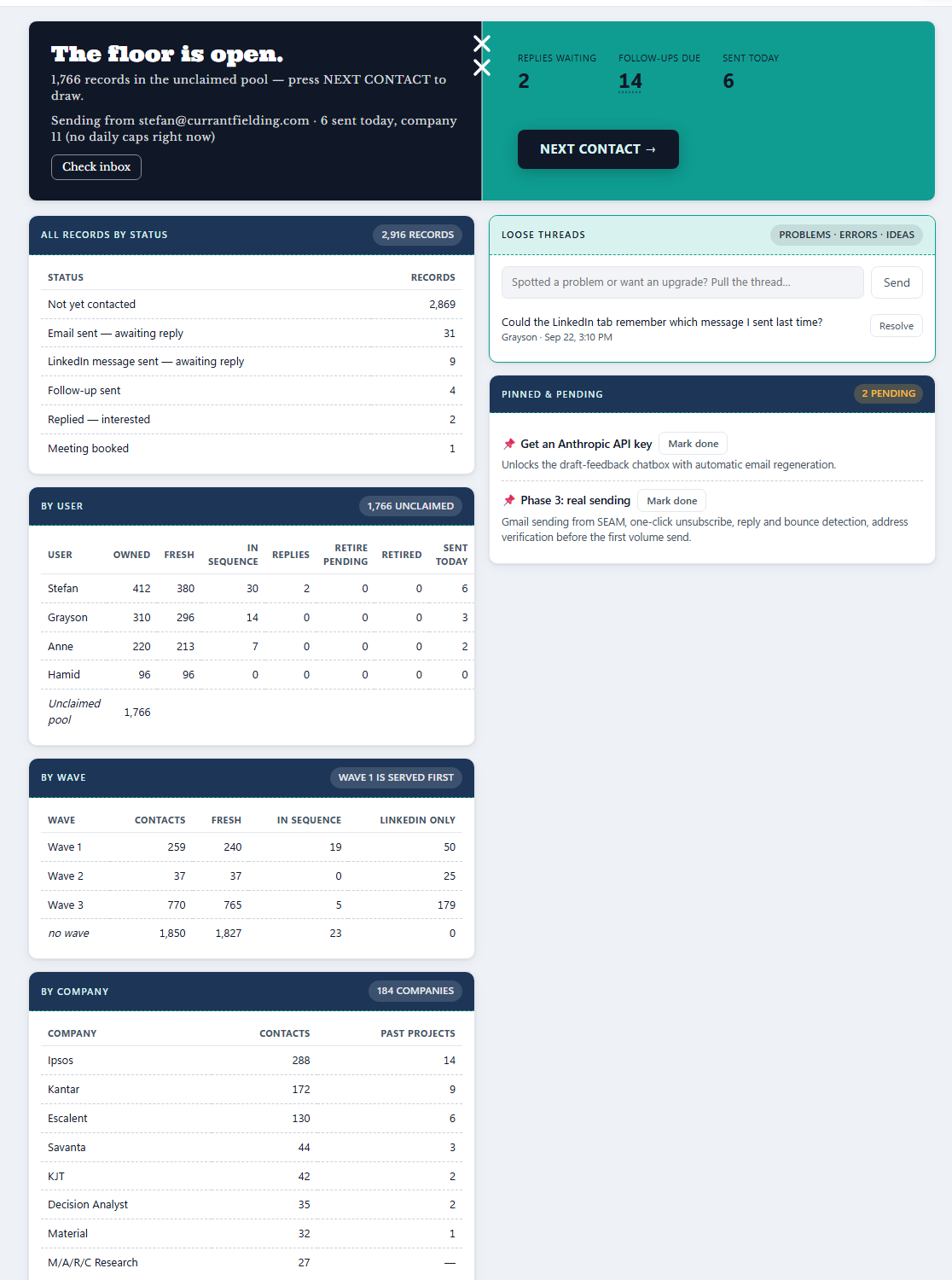
- The banner: your replies waiting, your follow-ups due (click the number to see who they are), what you sent today, and the big button. The line under the headline says where the pool stands, and the line under that is your mailbox: which Gmail SEAM sends from, how many went today, and a Check inbox button (see Connecting your Gmail).
- All records by status: every contact by their latest outcome.
- By user: who owns how many, how many are fresh, in sequence, awaiting a reply, and sent today. Only people who own contacts are listed.
- By wave: the LinkedIn waves (1, 2, 3) and the original pool ("no wave"), with how many can only be reached on LinkedIn.
- By company: contacts per company and past projects with them. Companies we have worked with sort to the top.
- Loose Threads (the mint box): type any problem, error or idea and press Send. A worker reads these every two hours; small fixes get made and the thread resolves itself, bigger ones are flagged to Stefan. Anyone can pull a thread.
- Pinned & pending (admins only): standing business tasks with a Mark done button.
Working the floor Operators
NEXT CONTACT → in the header, or on the dashboard banner
Press it and SEAM deals you one card. The order is fixed and worth knowing:
- Replies waiting on your own contacts come first.
- Then your own follow-ups that are due, always before any fresh contact.
- Then the rest of your own cards, then fresh contacts: wave 1 before wave 2 before wave 3, and the original pool after all the waves.
- Within that, the contact that has waited longest.
A few things are quietly skipped: anyone still inside their waiting window, anyone owned by someone else, anyone retired, and anyone at a company that had a message in the last day (waved contacts) or the last week (the original pool). That company window is why the floor never hammers one agency.
The card is held for you for 30 minutes (the timer sits in the Outreach header). Nobody else can be served it in that time. Logging an outcome releases it and deals the next; Skip releases it without recording anything, and you will not see that card again this session until the queue runs dry.
Seeing your follow-ups due
Click "Follow-ups due" on the dashboard banner, or the follow-ups chip in the header
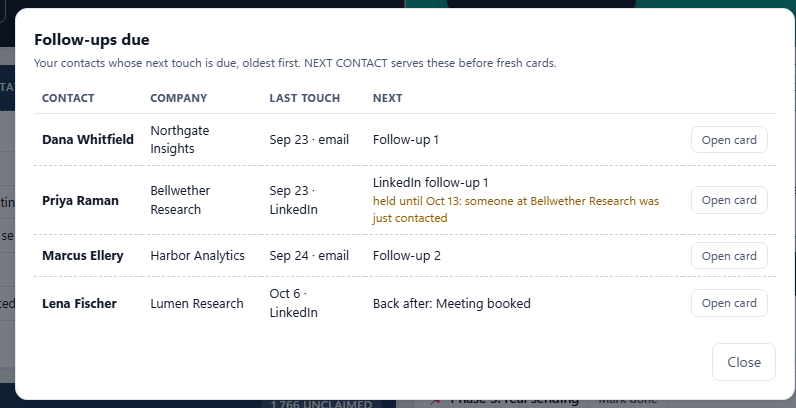
The number is a list. Each row shows the contact, their company, when they were last touched and how (email or LinkedIn), and which follow-up is next: Follow-up 1, Follow-up 2, the 6-weekly evergreen, or the LinkedIn equivalents. Open card takes you straight to the card; ← Back to dashboard brings you back.
- "Back after: Meeting booked" (or Out of office): the card came back because the date you logged has passed, not because a follow-up is due. Decide what happens next.
- "Held until …": someone else at that company was contacted in the last week (a day for wave contacts), so the floor waits. It deals the card the moment the hold ends.
The contact card
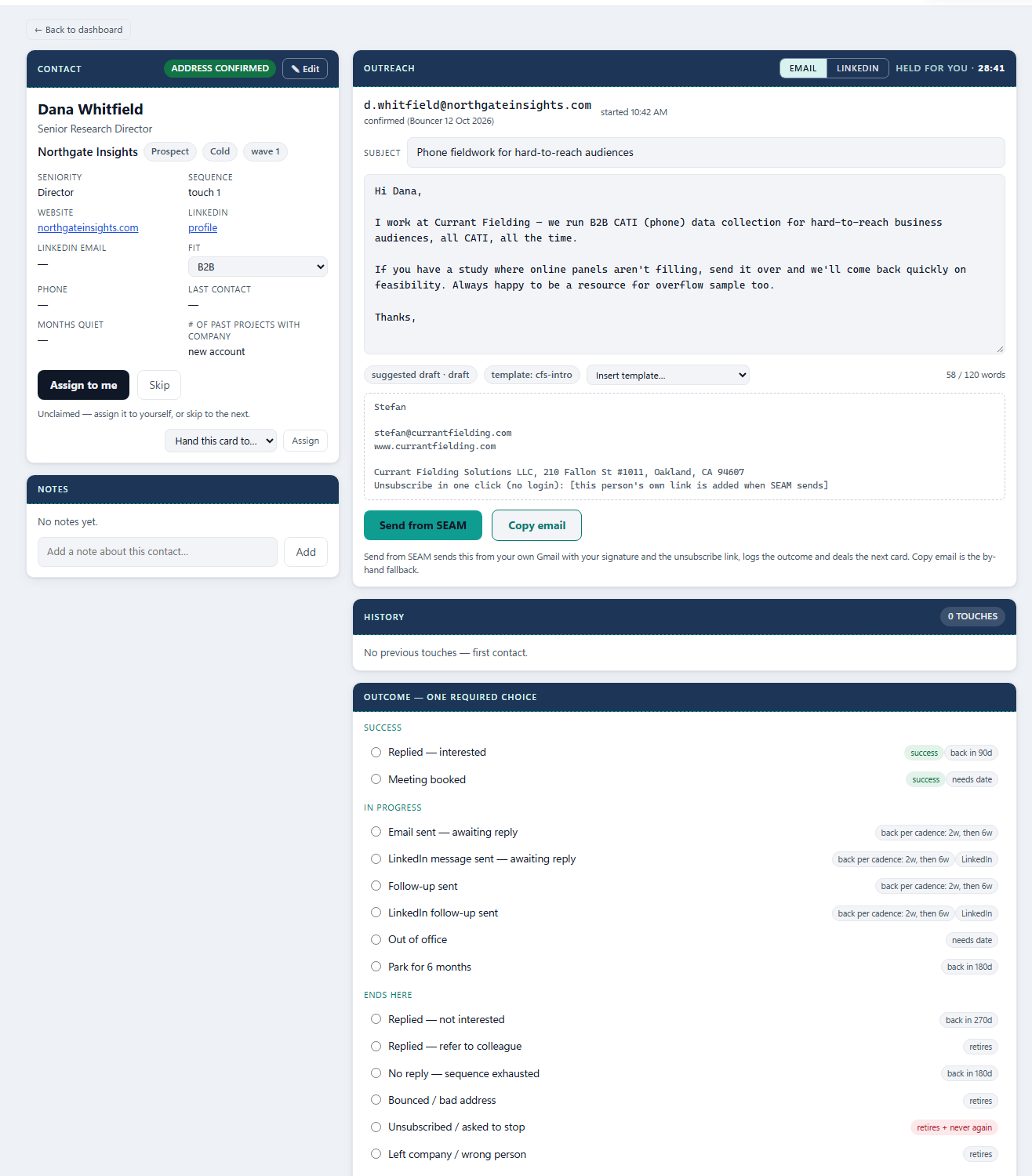
← Back to … sits above every card and takes you back to the screen you opened it from: the dashboard, or in Admin the same list (someone's records, unassigned, retired) with your filter and scroll spot kept. Your draft is saved first, and the card stays held for you.
The left column is the person: name, title, company, the status and tier from the original file, and the wave badge if they came in through a LinkedIn wave. The grid underneath holds seniority, the sequence step ("touch 1", "touch 2"…), website, LinkedIn profile, LinkedIn email, phone, and the account history with the company.
- Fit is the type of agency (B2B, HCP, General, Flag…). It is a dropdown right on the card, so you can set or change it as you go. Admins also see Add a new fit… at the bottom of that list: pick it, type a name, and it exists everywhere immediately.
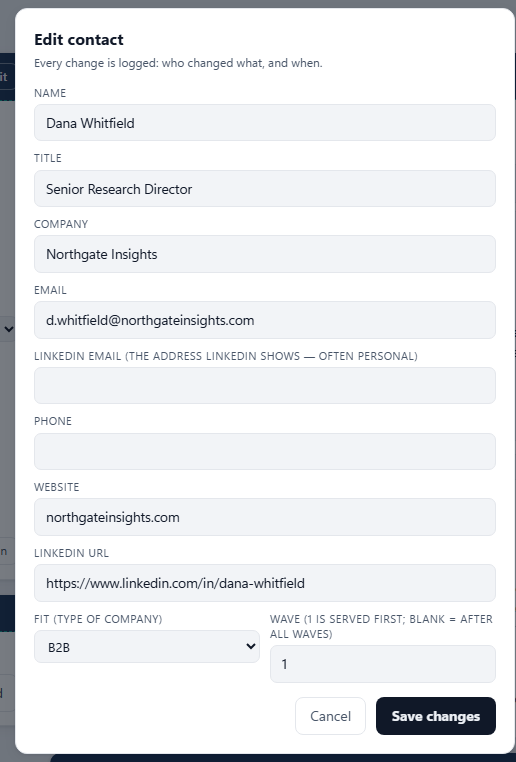
- ✎ Edit opens every field, including the LinkedIn email, fit and wave. Every change is logged with who made it.
- Watch outs (red) and Account note appear above Notes when the file carried them. Read them before you write.
- Notes are yours to add: anything a colleague should know next time this card comes round.
- Admins get a Hand this card to… picker to give the card to another operator on the spot.
Connecting your Gmail
Dashboard banner · once per person

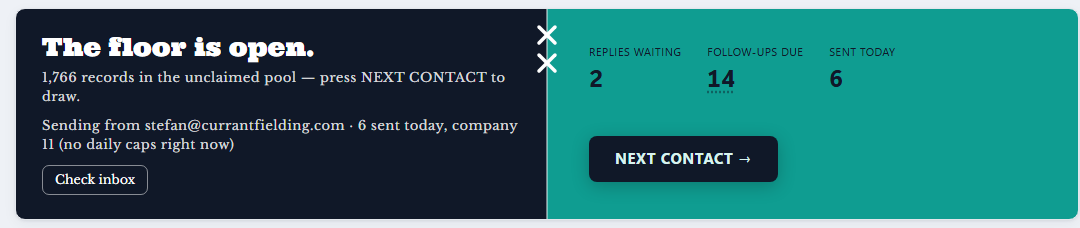
- On the dashboard banner press Connect Gmail. Google shows a screen saying SEAM wants to send email and read mail on your behalf. Press Allow. Only currantfielding.com accounts are offered this; no password is shared with SEAM.
- You land back on the dashboard and the line now reads "Sending from you@currantfielding.com". From here every card has a Send from SEAM button, and the inbox is checked for replies and bounces.
- You do this once. If Google ever withdraws the permission, the Send button tells you to press Connect Gmail again. You can also revoke it yourself from your Google account's third-party access page.
Sending an email
Outreach box · Email tab
- The address is masked until you press Start email. The badge in the Contact header is the verification verdict: every address in SEAM was checked against the real mail servers on 12 Oct 2026. address confirmed (green) means the mailbox exists; risky address means the company's server accepts anything, so a bounce is possible; address undeliverable (red) means it will bounce, and the Email tab is closed on that card. New contacts arrive as validate address until the next check.
- Start email drops the suggested draft into the box. Edit anything; it autosaves as you type. The word counter keeps you under 120.
- Want a different opener? Use Insert template… beside the draft badges. It replaces the subject and body with a saved template, filling in the person's first name and company. Templates are shared and kept by the admins (see Templates): the intro, Grayson's intro, follow-up 1, follow-up 2 and the evergreen.
- The dashed box shows what gets added under your message: your signature (name, address, website; phone and pronouns where we have them) and the footer with the business mailbox and this person's own one-click unsubscribe link. You never type these.
- Press Send from SEAM. The email leaves from your own Gmail, so it sits in your Sent folder like any other. SEAM logs Email sent — awaiting reply for you, saves exactly what went out, and deals the next card. The toast confirms who it went to and today's count.
- Copy email is still there as the by-hand fallback: it puts To, Subject, message, signature and footer on your clipboard for you to paste into your mailbox. If you use it, log the outcome yourself.
Follow-ups and the cadence
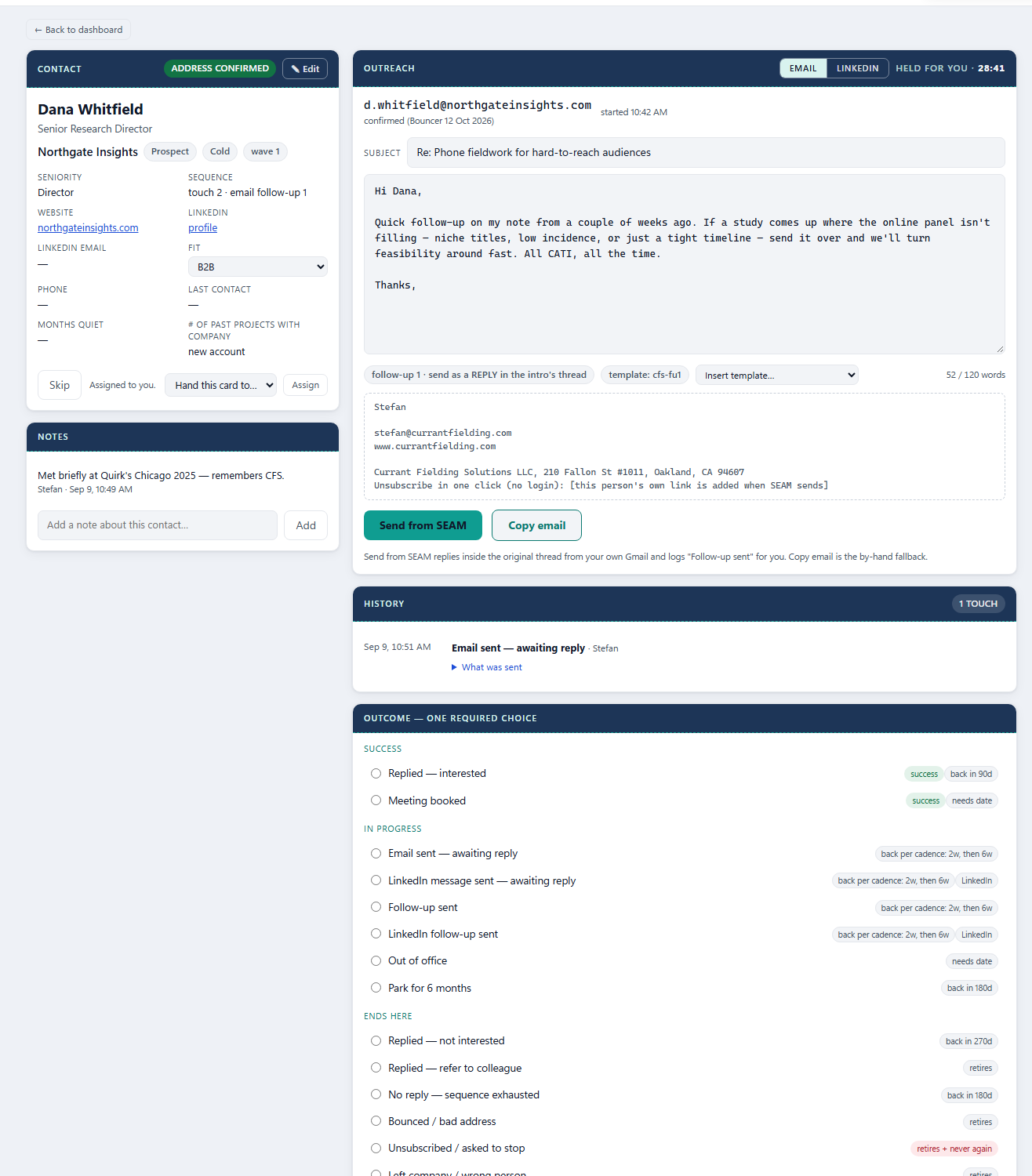
The cadence is: intro, follow-up 1 two weeks later, follow-up 2 six weeks after the intro, then every six weeks until the contact replies, bounces or unsubscribes. There is no cap on touches. You do nothing to schedule this: the card comes back when it is due, counted from your last send.
- The draft badge says follow-up 1 · send as a REPLY in the intro's thread. The subject is already "Re:" plus what you sent.
- Press Send from SEAM and it goes out as a reply inside the thread SEAM started, so the recipient sees one conversation. Follow-up sent is logged for you.
- Using Copy email instead? Find the original thread in your mailbox, press Reply, paste, send, then log Follow-up sent yourself.
- Either way the card comes back on the next step of the cadence.
Messaging on LinkedIn
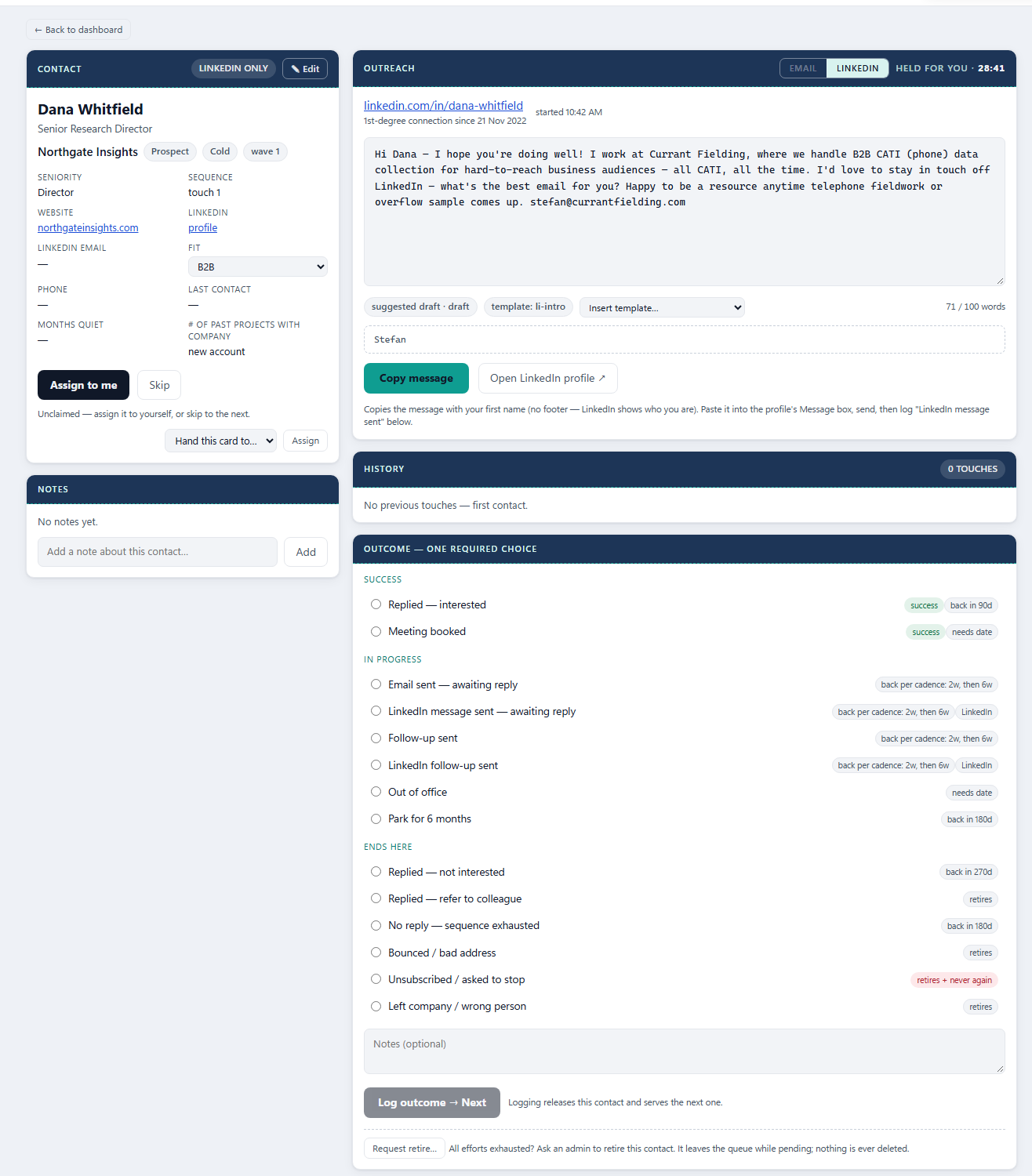
The Outreach header has two tabs, Email and LinkedIn. A contact with no email address on file opens straight on LinkedIn, with "LinkedIn only" in the Contact header. The LinkedIn tab works like the email one:
- Start message loads the draft, one of Anne's approved openers: Reconnect (asks for their best email; the reply is exactly what the LinkedIn email field is for) or, for people at a client company, Existing connection at a client company. Someone who just accepted your invitation? Insert template… also has New connection and New connection at a client company.
- Copy message copies the message with your first name under it. No signature block, no footer: LinkedIn already shows who you are.
- Open LinkedIn profile ↗ opens their profile in a new tab. Press Message there, paste, send.
- Log LinkedIn message sent — awaiting reply. It counts as a touch, same as an email, and follows the same cadence.
- When the card comes back two weeks later, the LinkedIn tab already holds LinkedIn follow-up 1; after that, the every-six-weeks follow-up. Send it in the same LinkedIn conversation and log LinkedIn follow-up sent. Both texts are also in the tab's "Insert template…" list.
Logging the outcome
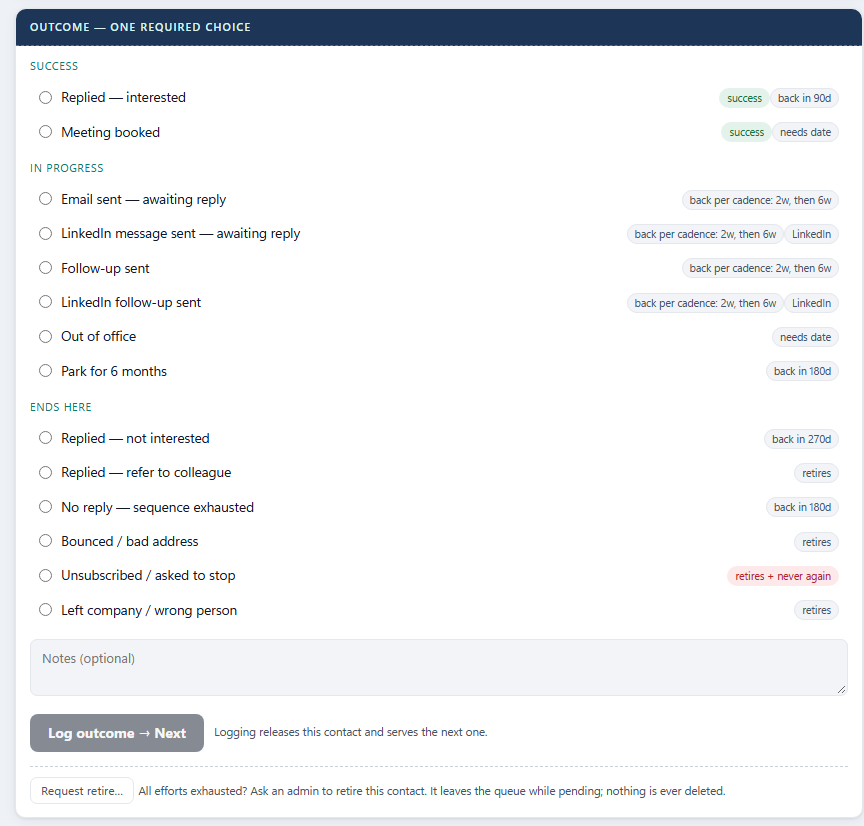
The bottom box on every card is the only way to finish it. Pick one, add a note if you like, press Log outcome → Next. The card is released and the next one is dealt. Each outcome does something specific:
| Outcome | What SEAM does |
|---|---|
| Email sent / Follow-up sent / LinkedIn message sent | Adds one touch, saves a copy of exactly what you sent, and brings the card back per the cadence (2 weeks, then 6, then every 6). Send from SEAM logs the email ones for you; LinkedIn and copy-paste sends you log yourself. |
| Reply detected | Not a choice: SEAM's inbox check marks the card "Reply waiting" when the person answers an email SEAM sent. You then log what the reply was. |
| Replied — interested | Marks a success; the card comes back in 90 days unless you act sooner. |
| Meeting booked | Asks for the date and time; the card returns then. |
| Out of office | Asks when they are back; the card returns that day. |
| Park for 6 months | Sleeps the contact for 180 days. |
| Replied — not interested | Sleeps the contact for 9 months. |
| Replied — refer to colleague / Left company / Bounced | Retires the card. Add the colleague or the new person with + Add. Admins can revive a retired card later. Bounces of emails sent from SEAM are logged automatically by the inbox check. |
| Unsubscribed / asked to stop | Retires the card and puts both their addresses on the permanent never-again list. Nobody can revive it. |
| Request retire… | Not an outcome: asks an admin to retire a contact you have given up on. The card leaves the queue while the admin decides. |
Adding contacts Operators Admins (spreadsheets)
+ Add in the header
Single contact (anyone): name plus either an email or a LinkedIn URL is enough. Fit and wave are optional. If the person is already in SEAM, nothing is duplicated: any blank details on their card are filled in from what you typed, and you are told so.
Upload spreadsheet (admins): a CSV or Excel file. SEAM reads the headings, recognises the usual ones (name or first + last, title, company or agency, email, LinkedIn email, LinkedIn URL, fit, wave, a draft subject and message) and keeps every other column as facts on the card.
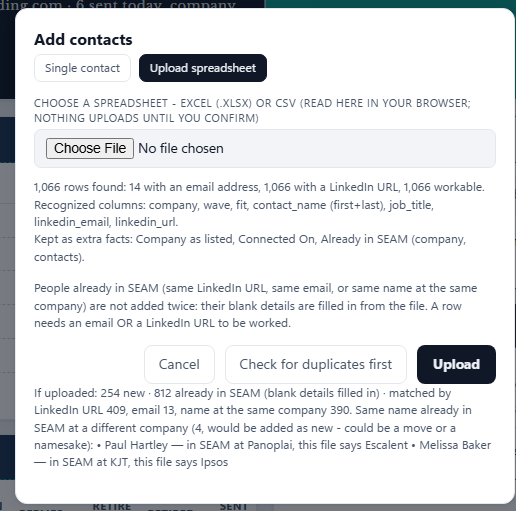
Press Check for duplicates first to see the counts without writing anything, then Upload. Each upload becomes a named batch, and rows with no email and no LinkedIn URL are skipped.
The admin desk Admins
Admin in the header
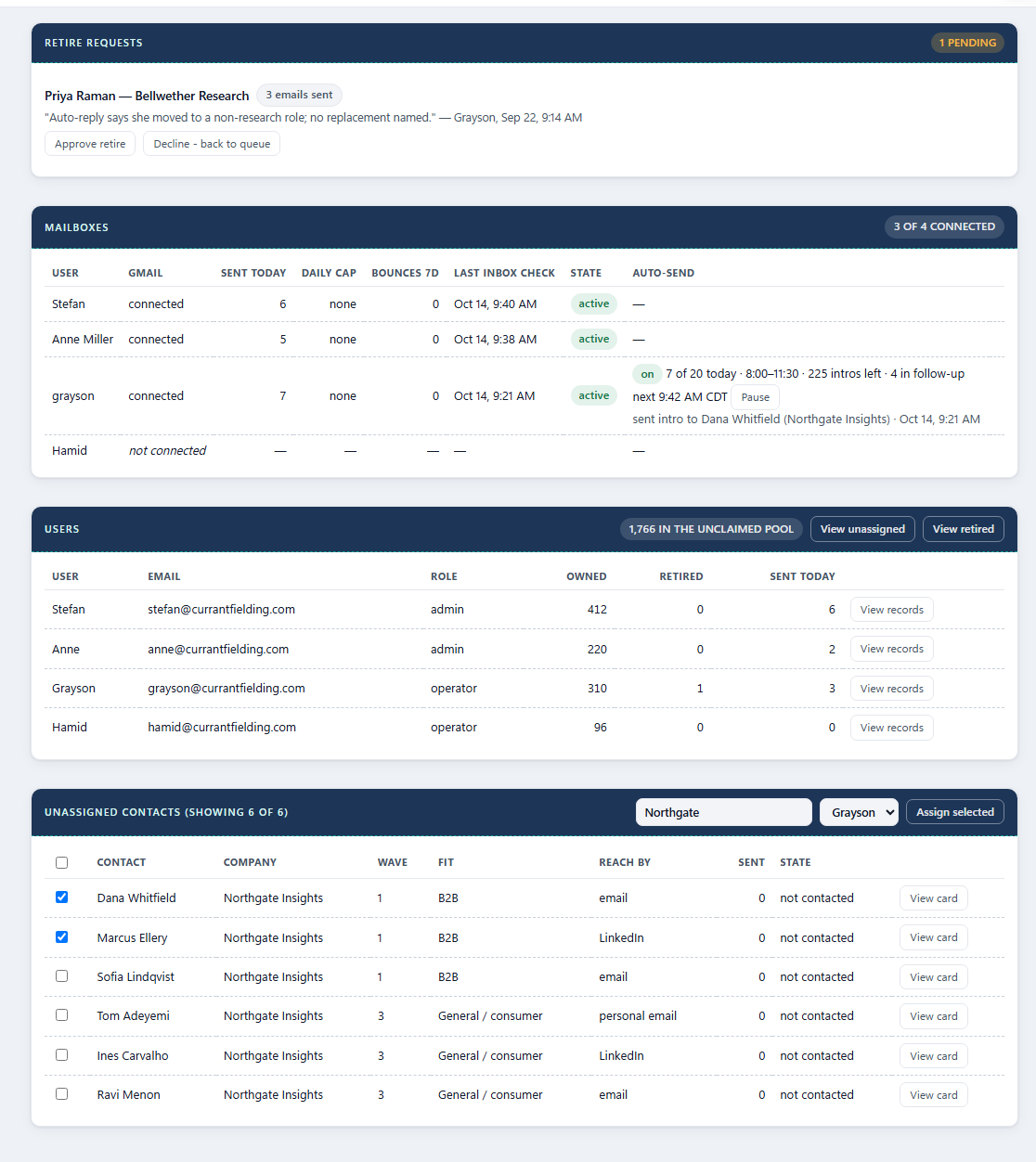
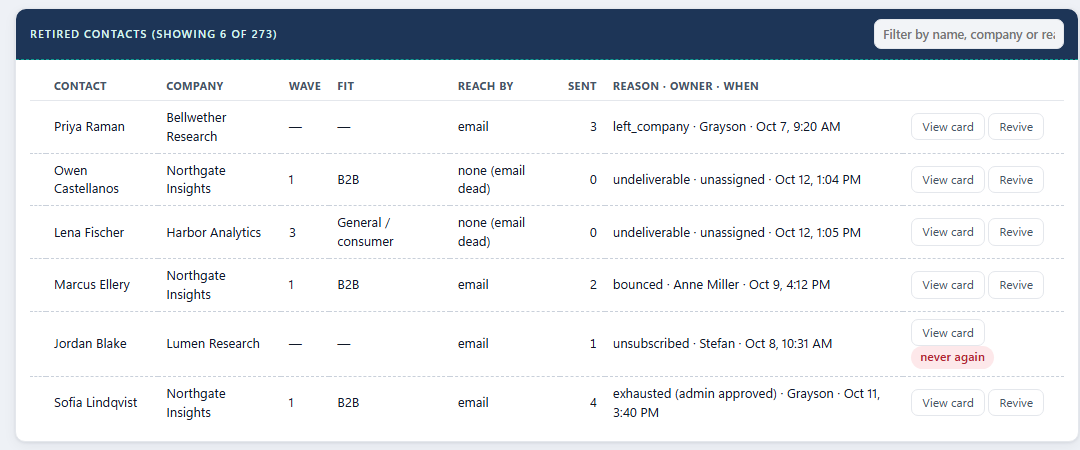
- Retire requests: operators ask, you decide. Approve retires the card (revivable), Decline sends it back to the queue.
- Mailboxes: who has connected Gmail, what each person sent today, bounces in the last week, when their inbox was last checked, and the state. A mailbox whose bounces pass three percent of its sends in a week (after at least twenty) is halted: NEXT CONTACT stops dealing to that person until an admin presses Resume sending here. The Auto-send column is covered under Automatic sending.
- Users: everyone who has signed in, with what they own and sent today. View records lists one person's contacts. The Owned column counts their live contacts only; the list also shows their retired ones at the bottom, so its total can be higher.
- View unassigned lists the unclaimed pool the same way. Filter by name or company, tick rows (or tick all shown), pick a person, Assign selected. The list reloads so you can hand out the next batch. Wave, fit and "reach by" columns tell you what kind of card you are giving.
- On a person's list, Release to pool un-owns the ticked contacts, and Revive brings a retired one back (never the unsubscribed).
- View retired lists every retired contact in SEAM, whoever owned them, with the reason, the owner and the date. The filter box also matches the reason, so typing "undeliverable" or "bounced" narrows the list to that group. Each row has Revive, except the unsubscribed, which show "never again".
- From search or these lists, admins can open anyone's card read-only, even while someone else is working it.
Templates
Admin → Templates · admins only
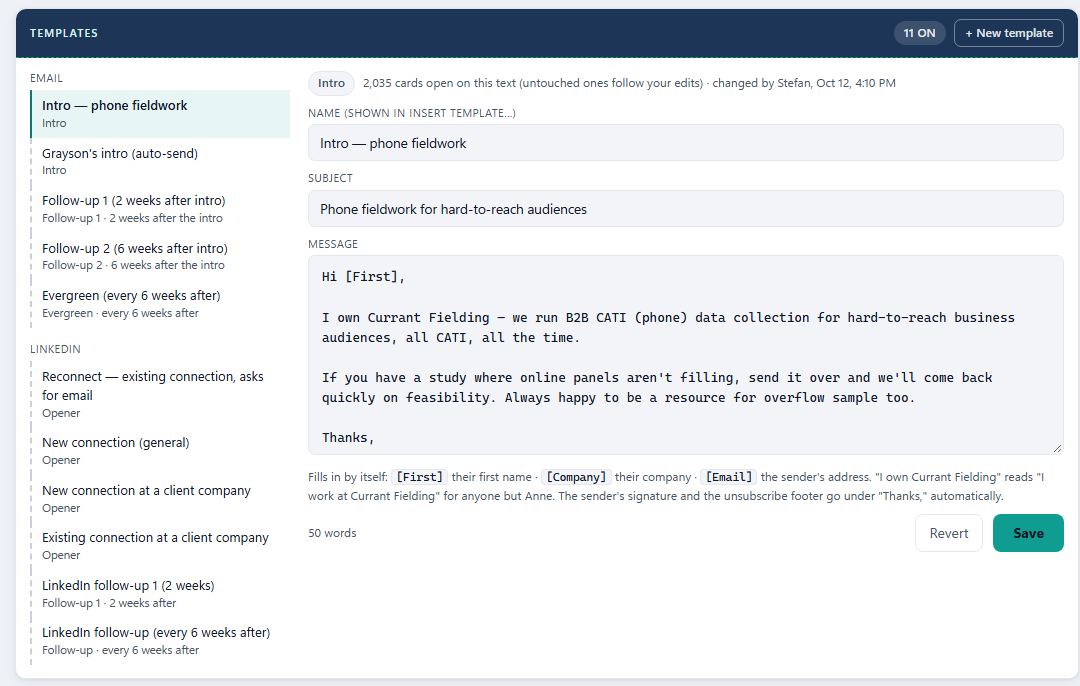
The list on the left holds every email and LinkedIn template, with its job under the name: the intro, follow-up 1 (2 weeks after), follow-up 2 (6 weeks after the intro), the evergreen (every 6 weeks after), the LinkedIn openers and follow-ups, and any extras. Click one to open it on the right.
- Change the name (what people see in Insert template…), the subject and the message. Follow-ups have no subject: they go as a reply, so the subject is "Re:" plus the intro's.
- Use
[First],[Company]and[Email](the sender's address) and SEAM fills them in. "I own Currant Fielding" reads "I work at Currant Fielding" for anyone but Anne. Don't type a signature: it is added under "Thanks," automatically. - Press Save. Revert throws away what you haven't saved.
- + New template adds an extra one (email or LinkedIn) that anyone can pick from Insert template…. An extra can be switched off with its On box.
- The follow-up steps and the auto-send intro can be reworded but not switched off, so nothing ever goes out blank.
- Under the role it shows who changed the template last, and when.
Automatic sending
Admin → Mailboxes → Auto-send column · admins switch it on and off
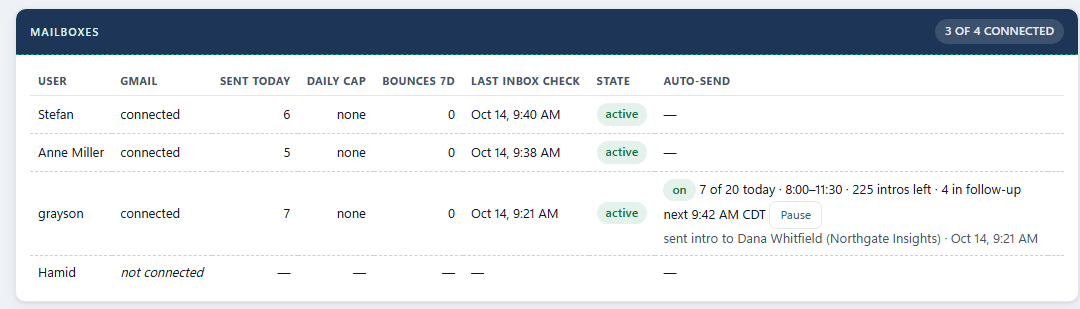
SEAM can work one person's own cards by itself, sending from that person's Gmail exactly as Send from SEAM would. It is set up for Grayson and stays switched off until he is ready. The rules:
- When: Monday to Friday, 8:00 to 11:30 am Central, spread through the morning, never in a burst. US holidays are skipped (Thanksgiving, Christmas to New Year, and the other federal holidays).
- How many: 20 a day, counting any email he sends by hand that day.
- Who: only his own cards with a working email address. One new person per company per day. Confirmed addresses first, risky ones last. InnovateMR (a client) is never emailed automatically, and contacts whose email is dead stay LinkedIn-only, by hand.
- What: his intro ("Quick intro from Currant Fielding"), follow-up 1 two weeks later, follow-up 2 six weeks after the intro, both as replies in the same thread, signed with his name. After that the card goes back on his floor for him to decide.
- Stops by itself: before every email SEAM checks his inbox. Anyone who replied, bounced or unsubscribed gets nothing more, and replies show as "Reply waiting" on his cards. The 3% bounce rule still halts the mailbox.
- Every automatic email says "sent automatically by SEAM" in the card's History.
- To start: Admin → Mailboxes → the person's row → Switch on, then click again to confirm. The first email goes in the next weekday window.
- To stop: Pause (two clicks). Nothing more goes out automatically; switch it back on any time.
- The column shows today's count, the window, intros left, how many are in follow-up, the next send time, and the last thing it did (or why it is waiting).
Rules of the floor Everyone
- One outcome per card, every time. Logging is how SEAM knows anything happened.
- Unsubscribed is sacred. Those addresses never come back, and there is no way to revive them. Log it the moment someone asks to stop.
- Trust the badge. Every address was verified on 12 Oct 2026: green is confirmed, "risky" may bounce, red is dead and the Email tab is closed. Contacts whose only address was dead and who have no LinkedIn profile were retired as "undeliverable"; find them under Admin → View retired. A bounce retires the contact and counts against your mailbox.
- No daily sending caps for now, while the team works through the list. When they return it will be 5 a day in a mailbox's first week, 10 in the second, 25 after that, and 75 a day across the company; the Send button will say so.
- LinkedIn emails are usually personal. The card warns you when it is using one. Ask for a work address in the first message instead.
- Don't touch someone else's card. The floor will not serve it to you; if you find it by search, ask an admin to reassign.
- Company courtesy. One thread per company per day for the waves, per week for the original pool. The floor enforces it; you don't have to count.
- Say it in Loose Threads. A broken button, a wrong label, a wish: type it on the dashboard rather than working around it.
Where do I find… Everyone
| I want to… | Go to |
|---|---|
| Get the next contact to work | NEXT CONTACT → in the header or the dashboard banner |
| See which follow-ups are due | Click "Follow-ups due" on the dashboard banner, or the chip in the header |
| Get back to the list or dashboard I opened a card from | ← Back to … above the card |
| Find a specific person or company | The search box in the header; click the result |
| See what I sent someone | Their card → History → "What was sent" (and your own Gmail Sent folder) |
| Let SEAM send from my address | Dashboard banner → Connect Gmail (once) |
| See if anyone has replied | Dashboard banner → Check inbox; replies also show as "Reply waiting" in the header chips |
| Un-halt a mailbox after bounces | Admin → Mailboxes → Resume sending (admins) |
| See who has been retired, and why | Admin → View retired; type a reason in the filter box to narrow it (admins) |
| Bring a retired contact back | Admin → View retired → Revive (not possible for the unsubscribed) |
| Change a contact's details, fit or wave | Their card → ✎ Edit (fit is also a dropdown on the card) |
| Add a new fit option | Any fit list → Add a new fit… (admins) |
| Use a different opener | Outreach box → Insert template… |
| Change a template's wording | Admin → Templates → click it → Save (admins) |
| Start or pause Grayson's automatic emails | Admin → Mailboxes → Auto-send → Switch on / Pause (admins) |
| Add one person | + Add → Single contact |
| Load a list | + Add → Upload spreadsheet (admins) |
| Hand contacts to a colleague | Admin → View unassigned or View records → tick → Assign selected |
| Retire someone I've given up on | Their card → Request retire… (admins decide on the Admin page) |
| Report a problem or ask for a change | Dashboard → Loose Threads |
| Switch light and dark | The moon / sun button in the header |
Landing soon Everyone
- Daily caps and warm-up switch back on once the list has been worked through: 5 / 10 / 25 a day per mailbox over the first weeks, 75 a day for the company.
- Verification of new contacts as they arrive, so uploads and hand-added people get the same green, risky or red badge without waiting for the next full check.
- Grayson's automatic emails start once he gives the go-ahead (everything is built and tested; see Automatic sending).
This page is also one click away inside SEAM: the Walkthrough button in the header.
LinkedIn messaging itself stays as it is: you send and read replies there, and log the outcome here.